

How to Set Up SKT, KT, LGU+ LTE APN on Android.
Why Are APN Settings Required?

Most SKT, KT, LGU+ Korea SIM cards works automatically. However, some Android phone may not receive the correct APN settings.
If mobile data, MMS, or Personal Hotspot is not working, manually entering the SKT, KT, LGU+ APN settings can help restore the connection.
Step-by-Step Guide
Step 1 : Navigate to APN Settings
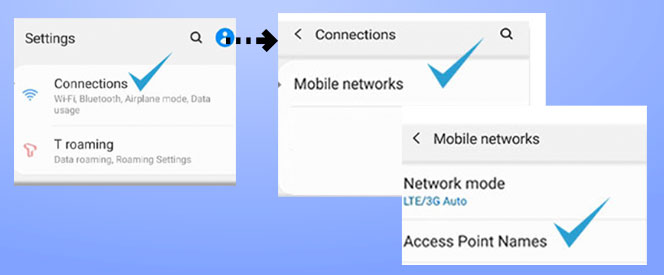
– Open the Settings app and go to “Connections” > “Mobile networks” > “Access Point Names”.
Step 2 : Add a New APN
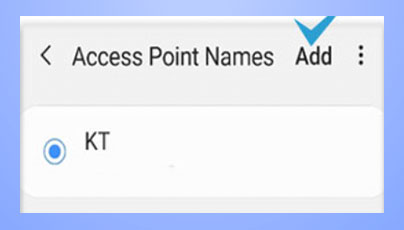
– Tap “Add” (or the + icon) in the top-right corner of the screen.
Step 3 : Enter the Network Profile Details
– Fill in the fields exactly as shown below based on your network provider:
1. Name (Select your provider)
– SKT, KT, or LGU+
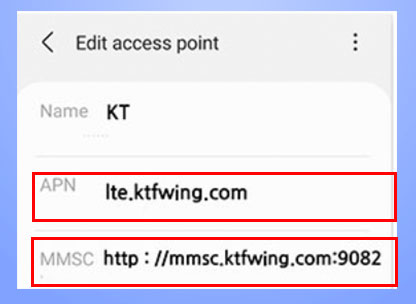
2. APN:
– SKT → lte.sktelecom.com
– KT → lte.ktfwing.com
– LGU+ → internet.lguplus.co.kr
3. MMSC:
– SKT → http://omms.nate.com:9082/oma_mms
– KT → http://mmsc.ktfwing.com:9082
– LGU plus → http://omms.uplus.co.kr:9084
4. MCC:
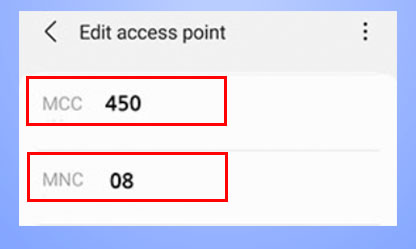
– Enter the Mobile Country Code (Korea) → 450.
5. MNC:
– SKT → 05
– KT → 08
– LGU plus → 06
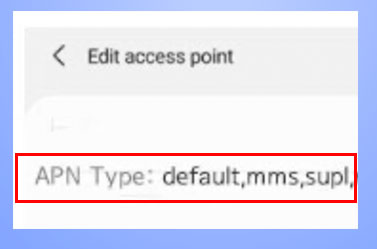
6. APN type field:
– Enter default,supl,mms (Type exactly as shown with commas and no spaces)
Step 4 : Save and Apply
– Tap the three dots (More menu) in the top-right corner.
– Afterward, select the newly created APN profile to activate it.
Step 5 : Restart your device
– Restart your phone 1–2 times to fully apply the network changes.
After Completing the Setup
Once you have entered and saved the APN settings, your Korea SIM card is ready to use.
If you have not arrived in Korea yet, you can keep the SIM data plan turned off for now. After landing in Korea, simply turn the data plan back on. The SIM will activate automatically, and your phone will connect to the SKT, KT, or LG U+ mobile network.