

How do I set up Roaming eSIM on my iPhone?
 KOR
KOR
Quick Summary
– Go to Settings > Cellular > Add eSIM and scan QR code.
– After activation, set Primary and select eSIM for data.
– Turn on Data Roaming / Turn off Automatic network and select manually.
Step 1: Install eSIM (for China, Korea, Asia – 18 countries, Europe – 28 Countries)
For iPhone 15 and earlier, 16, and 17, the installation process is the same. On newer models, fewer taps are required and some steps may proceed automatically.

1. Go to Settings > Cellular > Add eSIM > Use QR Code
2. Scan the QR code (from another device or printout), or use the Camera app to scan it directly
3. Click Continue until activation begins.
4. Wait for the eSIM to activate (this may take a few minutes — do not exit).
.
* Install it in advance in a stable Wi-Fi environment before your trip.
* “Activating…” or “Unable to Activate eSIM” before departure is normal.
Step 2: Activate New eSIM (Secondary line – Travel)
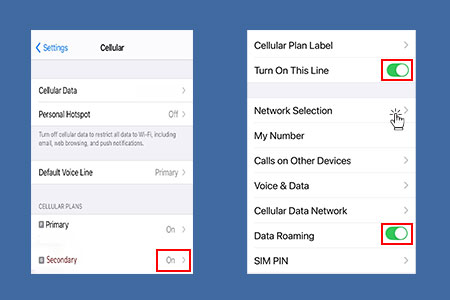
When you arrive at your destination, follow these steps:
1. Go to Settings > Cellular > select your new eSIM.
2. Turn on “Turn On This Line”.
3. Turn on Data Roaming.
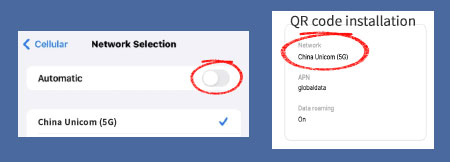
4. Next, click Network Selection and turn off Automatic,
5. then Select the eSIM network (refer to QR code installation guide).

* To prevent unexpected roaming charges:
Go to Cellular Data and turn off Allow Cellular Data Switching.
* Turn on your Primary line to use iMessage (see below).
* Restart your phone if it doesn’t work right away.
Using iMessage and FaceTime
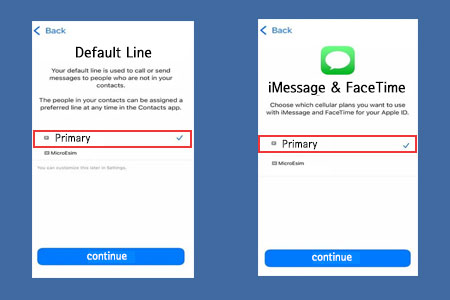
1. Go to Settings > Cellular → set your Primary line as the default
2. Go to Settings > Messages > Send & Receive → select your Primary line.
3. Go to Settings > FaceTime → Select your Primary line.
What’s Roaming eSIM?
Roaming eSIM is a service that allows you to use data by connecting to local carrier networks via roaming across one or multiple countries without needing to swap a physical SIM. It is available in Korea, China, 18 countries in Asia, and 28 countries in Europe.