

How do I Set Up SKT, KT, LGU+ LTE APN on my iPhone?
Why Are APN Settings Required?
Most SKT, KT, LGU+ Korea SIM cards works automatically. However, some iPhones may not receive the correct APN settings.
If mobile data, MMS, or Personal Hotspot is not working, manually entering the SKT, KT, LGU+ APN settings can help restore the connection.
Simple Step
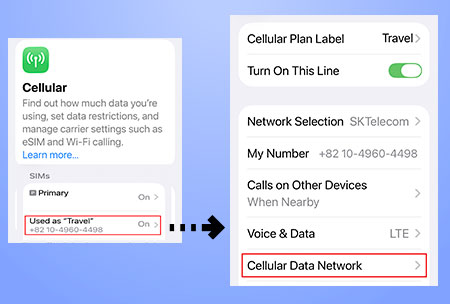
*To configure the APN settings:
– Open Settings.
– Tap Cellular.
– Select the SIM plan you want to use.
– Tap Cellular Data Network.
– Enter the APN settings below.
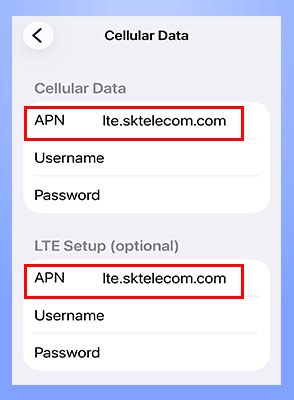
1. Cellular Data
APN : (Select the APN for your network.)
– SKT → lte.sktelecom.com
– KT → lte.ktfwing.com
– LGU plus → internet.lguplus.co.kr
2. LTE Setup (Optional)
APN : (Select the APN for your network.)
– SKT → lte.sktelecom.com
– KT → lte.ktfwing.com
– LGU+ → internet.lguplus.co.kr
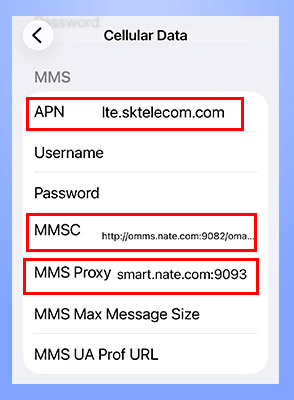
3. MMS
3.1 APN: (Select the APN for your network.)
– SKT → lte.sktelecom.com
– KT → lte.ktfwing.com
– LGU plus → internet.lguplus.co.kr
3.2 MMSC: (Select the APN for your network.)
– SKT → http://omms.nate.com:9082/oma_mms
– KT → http://mmsc.ktfwing.com:9082
– LGU plus → http://omms.uplus.co.kr:9084
3.3 MMS Proxy:
– SKT → smart.nate.com:9093
– KT → Leave it blank (Empty)
– LGU plus → Leave it blank (Empty)
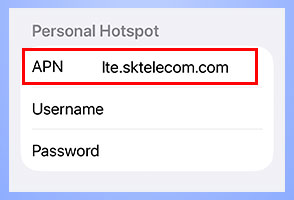
4. Personal Hotspot
APN: (Select the APN for your network.)
– SKT → lte.sktelecom.com
– KT → lte.ktfwing.com
– LGU plus → internet.lguplus.co.kr
All other fields can be left blank.
After Completing the Setup
Once you have entered the APN settings, your Korea SIM card is ready to use.
If you have not arrived in Korea yet, you can keep the SIM data plan turned off for now. After landing in Korea, simply turn the data plan back on. The SIM will activate automatically, and your phone will connect to the SKT, KT, or LG U+ mobile network.
(Note for iPhone users: You can skip the MCC and MNC settings, as iOS configures them automatically and does not provide an option to enter them manually.)