

How can I check if my phone has a country lock?
Overview
An unlocked phone means your device can freely use overseas eSIMs or SIM cards without carrier restrictions.
* How to Check Before Purchasing an eSIM ( or SIM)
– 1. Check the unlock status in your phone settings
– 2. Check the unlock status using your IMEI number
* How to Check After Purchasing an eSIM (or SIM)
– 3. Try using a SIM card from a different carrier
– 4. Check the message displayed on your phone when switching SIMs or installing an eSIM
1. Check the Unlock Status in Your Phone Settings
* For iPhone
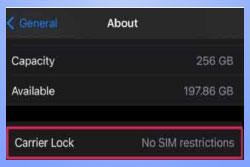
– To check if your iPhone is unlocked, follow the path below.
– Settings → General → About → Carrier Lock
– If “No SIM restrictions” is displayed under Carrier Lock, your iPhone is unlocked.
– If a specific carrier name is displayed instead, your iPhone is locked to that carrier.
– In this case, you need to request an unlock from your carrier or Apple Support.
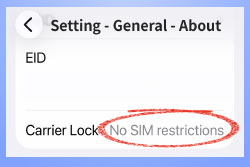
* For Android
– To check if your Android is unlocked, follow the path below.
– Settings → Connections → More connection settings → Network Unlock or Network Lock Status.
– Menu names may vary depending on the manufacturer and device model.
– If you see messages such as “Unlocked” or “No SIM restrictions,” your phone is unlocked.
– If a specific carrier name or “Locked” is displayed, your phone is carrier-locked.
– In this case, you need to request an unlock from your current mobile carrier.
2. Contact Your Carrier
– You can also contact your current mobile carrier to check if your phone is locked or unlocked.
– Contact your carrier and provide the IMEI number to confirm your phone’s lock status.
– They can tell you if your phone is locked or unlocked and explain how to request an unlock if needed.
3. Try Using a SIM Card from a Different Carrier
– You can also check your phone’s unlock status by using a SIM card from a different carrier.
– Prepare a SIM card from another carrier.
– Replace your current SIM card with the different carrier’s SIM card.
– Turn your phone back on and try making a phone call.
– If the call works normally, your phone is likely unlocked.
– If you cannot make a call, your phone may be carrier-locked or country-locked.
* Important Notes
– Some U.S. phones may work with other U.S. carriers but still be locked for overseas eSIM or SIM use.
– If you have a U.S. phone, please confirm with your carrier that your device is fully unlocked for international use.
4. Check the Message Displayed When Switching SIMs or Installing an eSIM
– When you insert a new SIM card or scan an eSIM QR code, your phone may display a warning message if the device is locked.
– If you see messages like the examples below, your phone is very likely carrier-locked or country-locked.
* For iPhone
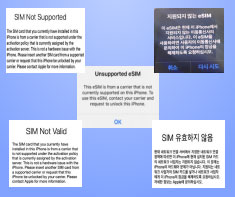
Depending on the iPhone model and iOS version, different warning messages may appear, such as:
– “Unsupported eSIM”
– “SIM Not Supported”
– “SIM Not Valid”
* For Android
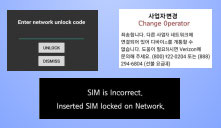
Depending on the Android device and software version, messages may appear such as:
– “Unlock PIN Code”
– “Enter Network Unlock Code”
– “SIM is Incorrect”
– “SIM Network Unlock PIN”
– “Change Operator”
* How to solve :
– Contact your mobile carrier and request an unlock for your device.
– In most cases, the unlock process can be completed remotely through the carrier’s customer service.